Anthony Bellavia
  • Projects
  • About
  • Contact
  • Design Process

Bloodborne In-game App

5/28/2015


Click the image below to see the full PDF

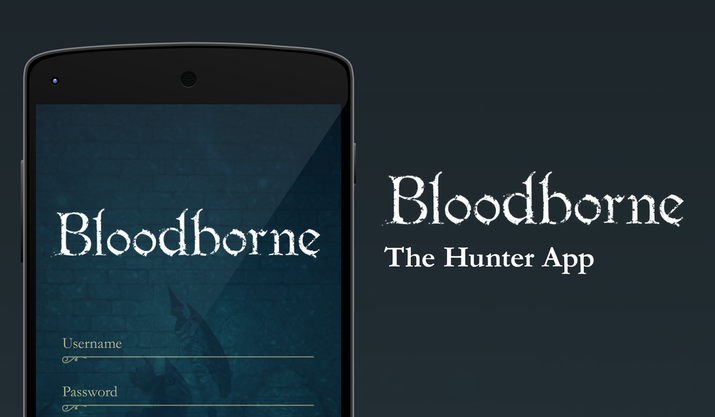
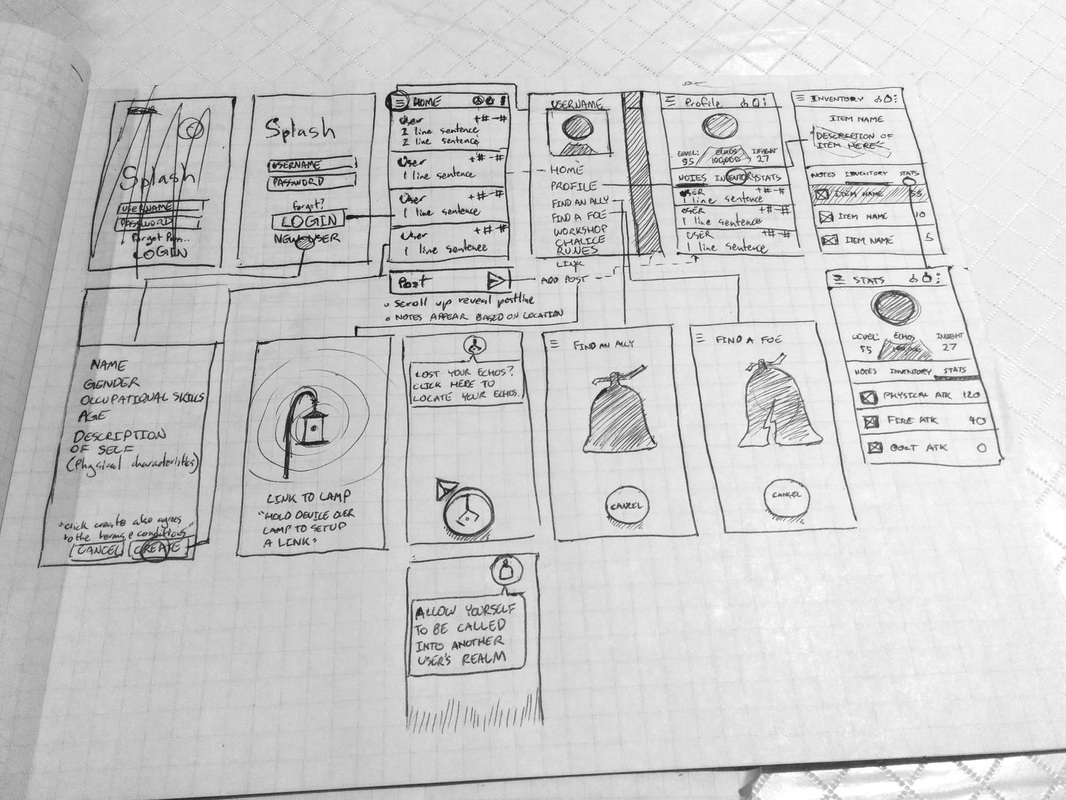
I did Last of Us last time, and this time I chose to do another about a game I adore developed by From Software, Bloodborne. Again this is simply for fun and to practice my skills. This app is meant to be used by the hunters. This is how I like to think the hunters know how to navigate Yarhnam... some what. Now there is a lot to the game which meant the app would be larger compared to Last of Us app. So instead of doing all the screens I did some of the more prominent ones for the mock up. Below is a description of how the app kinda works and wireframes done by hand, yes by hand. I wanted to do them by hand because well, I don't really get the opportunity to.

Now let's get into it shall we? The UI mimics the style of the game going for that old decorative, Gothic, Victorian style. In terms of type, I chose Garamond because it is a nice serif font with wonderful letter forms and variation.

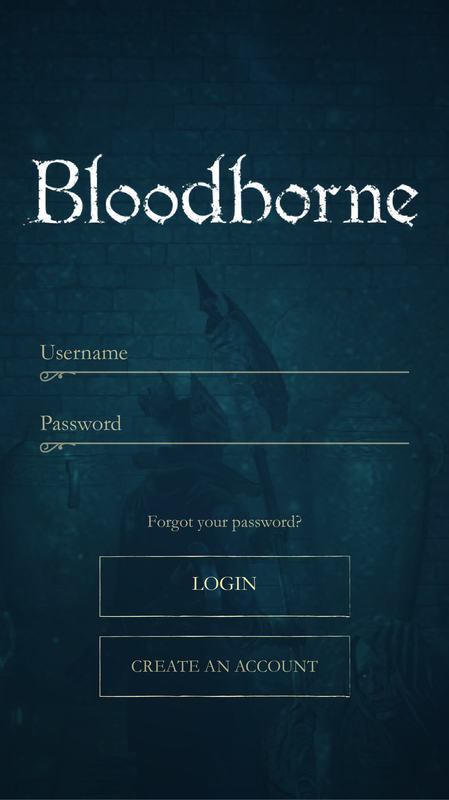
On the Initial Launch you need to login which is like loading a saved game. Creating a new account will reflect that of creating a new character, ie; name, gender, profession, description of self, etc.

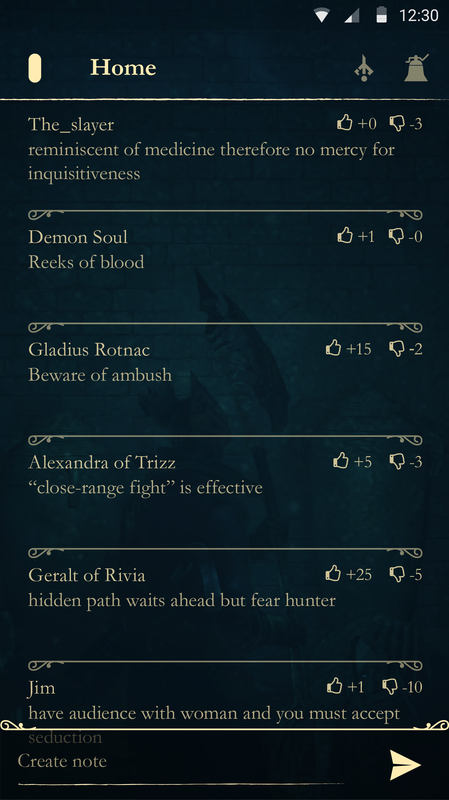
The Home page shows all notes from other users and users can rating them. It will take notes posted in the immediate area firstly. At the bottom of the screen users will be able to post their own notes. 

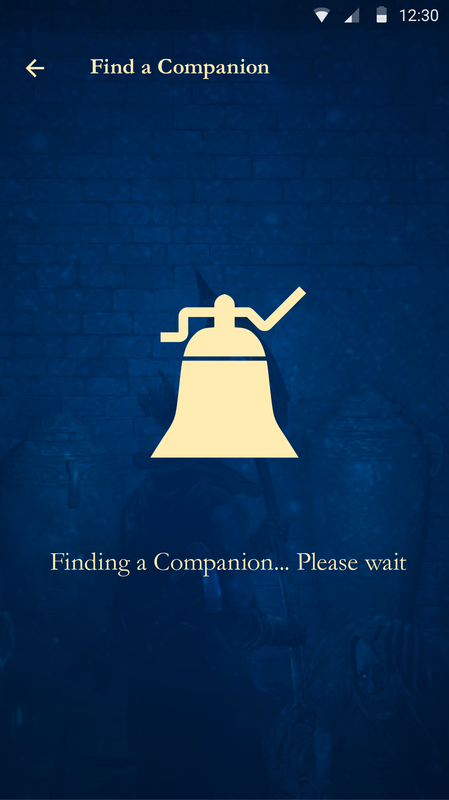
Fixed navigation in the header has three buttons. First, the menu button is in the shape of the option button on the PS4 controller instead of using a hamburger menu or anything else. To the right is the blood echos button which would help the user track down lost blood echos and pick up new ones by holding the device close to the location. The most right button is the small chime bell button which makes the user available to be invaded or called on for cooperation.

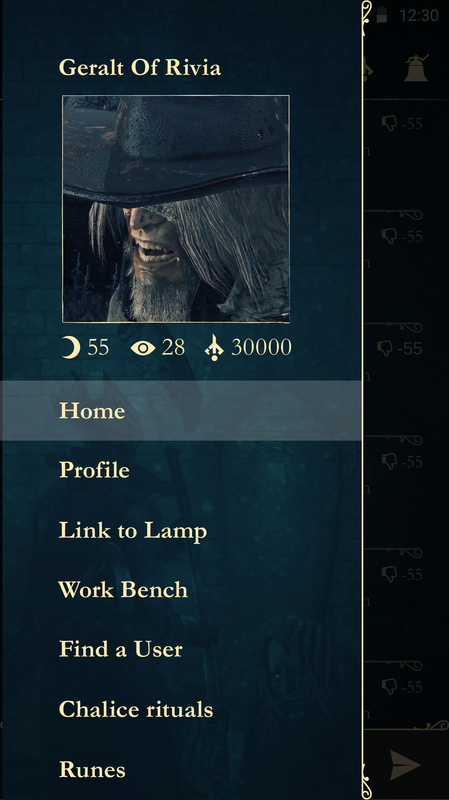
The Menu will show the user, user's level, blood echos, and insight. It will also house all the options for users to select.

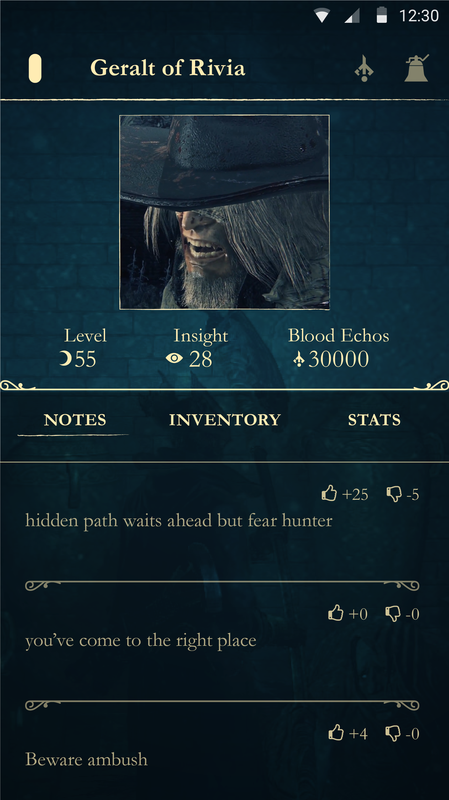
On initial launch of the Profile It will have the name of the user in the fixed header, a picture of the user, user's level, blood echos, and insight. The submenu below has three options; notes (user's posted notes) inventory (list of inventory items, number, and description when selected) stats (stats on character).

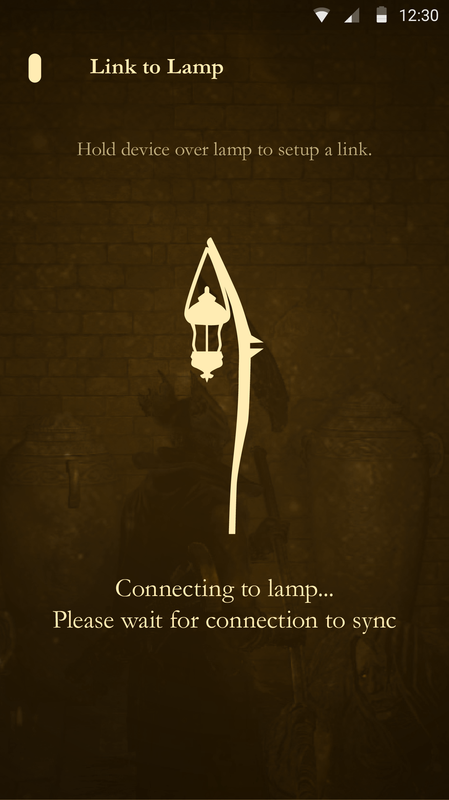
Clicking Link to Lamp sets the device up to link to lamps across Yarhnam. Hold the device to connect to lamps.

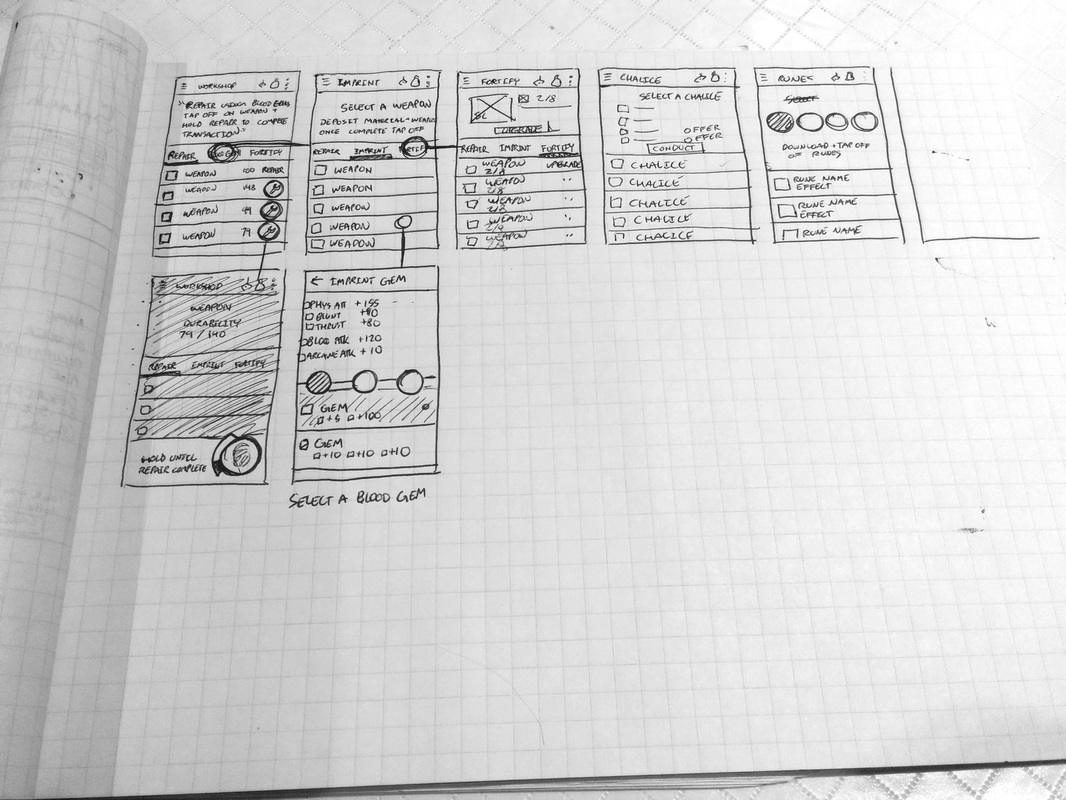
Clicking Work Bench opens up similar to profile style. It will open Fortify initially. In the main display area it will say "select a weapon" and a brief description how to use this section. Essentially, users tap device on work benches, weapons, to complete transactions and desposit materials. The submenu has three options again; fortify, repair, and imprint. 

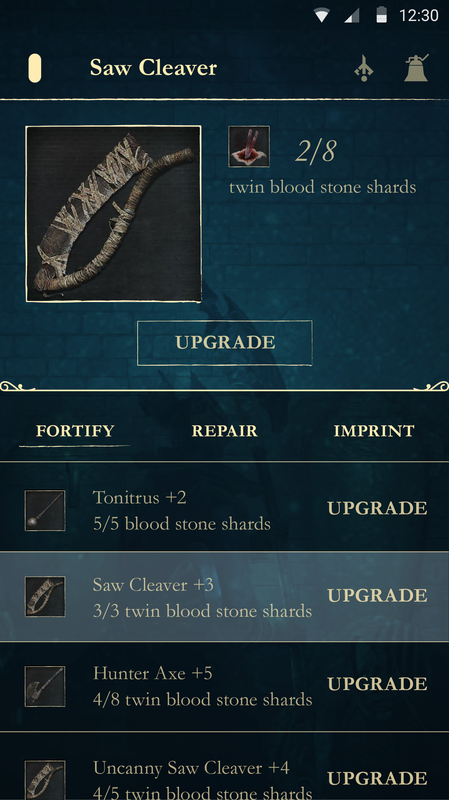
Fortify lists weapons, materials needed and have, and a button to upgrade. Users must hold upgrade in order for a function to be completed. Selecting a weapon shows a larger image of the weapon, the materials needed and have with the material image, and another upgrade button.

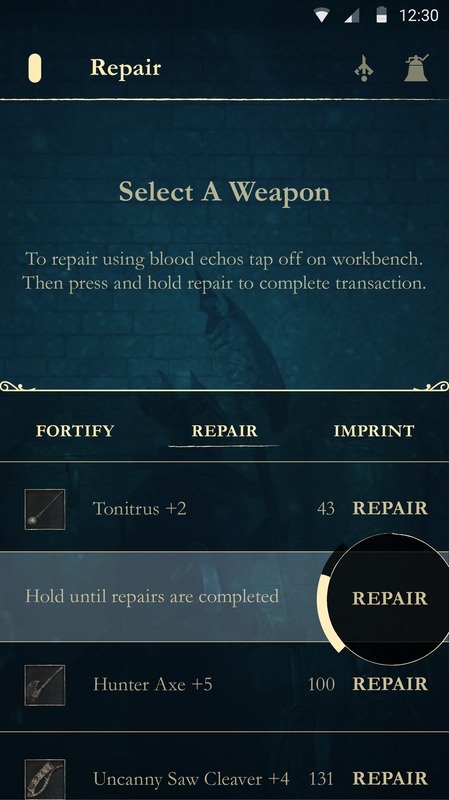
Repair lists weapons, durability, and a repair button. Users must hold repair in order for a function to be completed. Selecting a weapon shows a larger image of the weapon, the durability lost and max, and another repair button.


Imprint lists weapons to be selected first. Once the user selects a weapon the screen advances to a new screen with a similar layout except the submenu is replaced with 3 slots. The top tells the user to tap the work bench to deposit blood gems. To fill a slot the user will select one and choose from the list below of blood gems. When the user selects a blood gem the icon of said gem will appear in the slot. In order to get back to the work bench screen the user must click the back arrow where the menu icon would be.

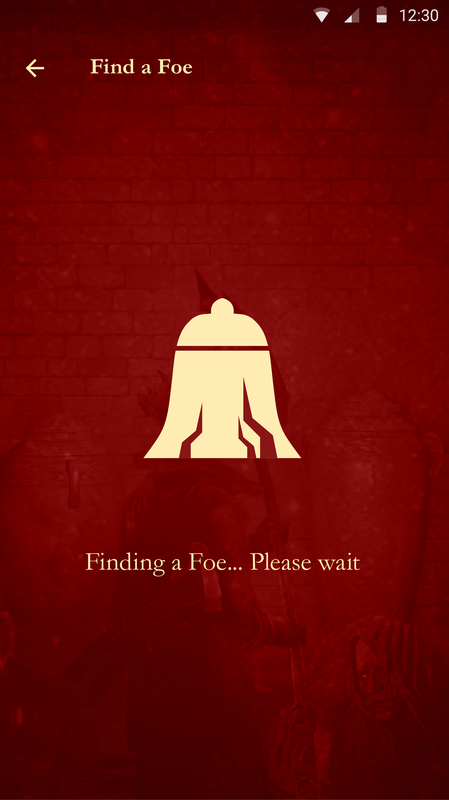
Find a User allows the user to either find a companion or find a foe.

Chalice Rituals is broken into two parts; top preview/detail area and the bottom list similar layout to other screens in this app. First the preview area will instruct to select a chalice from the bottom list. After selecting a chalice it will show in the preview area the materials needed as well as buttons to make "offerings". To conclude click the conduct button to start the ritual.

Runes is broken into two parts similar to Chalice rituals (top preview/details and list) The top preview has four slot buttons with the first automatically selected. To fill a slot select a rune from the list below. When a slot is filled the image of the rune selected will appear inside
Picture

Comments are closed.
Proudly powered by Weebly
  • Projects
  • About
  • Contact
  • Design Process